How to set up table ordering tiles for a restaurant or pub
Number the tables, get the per-table links from your ordering system, put one tile on each table, and keep it working through a menu change or a refit.
By Shortfield 4 min read
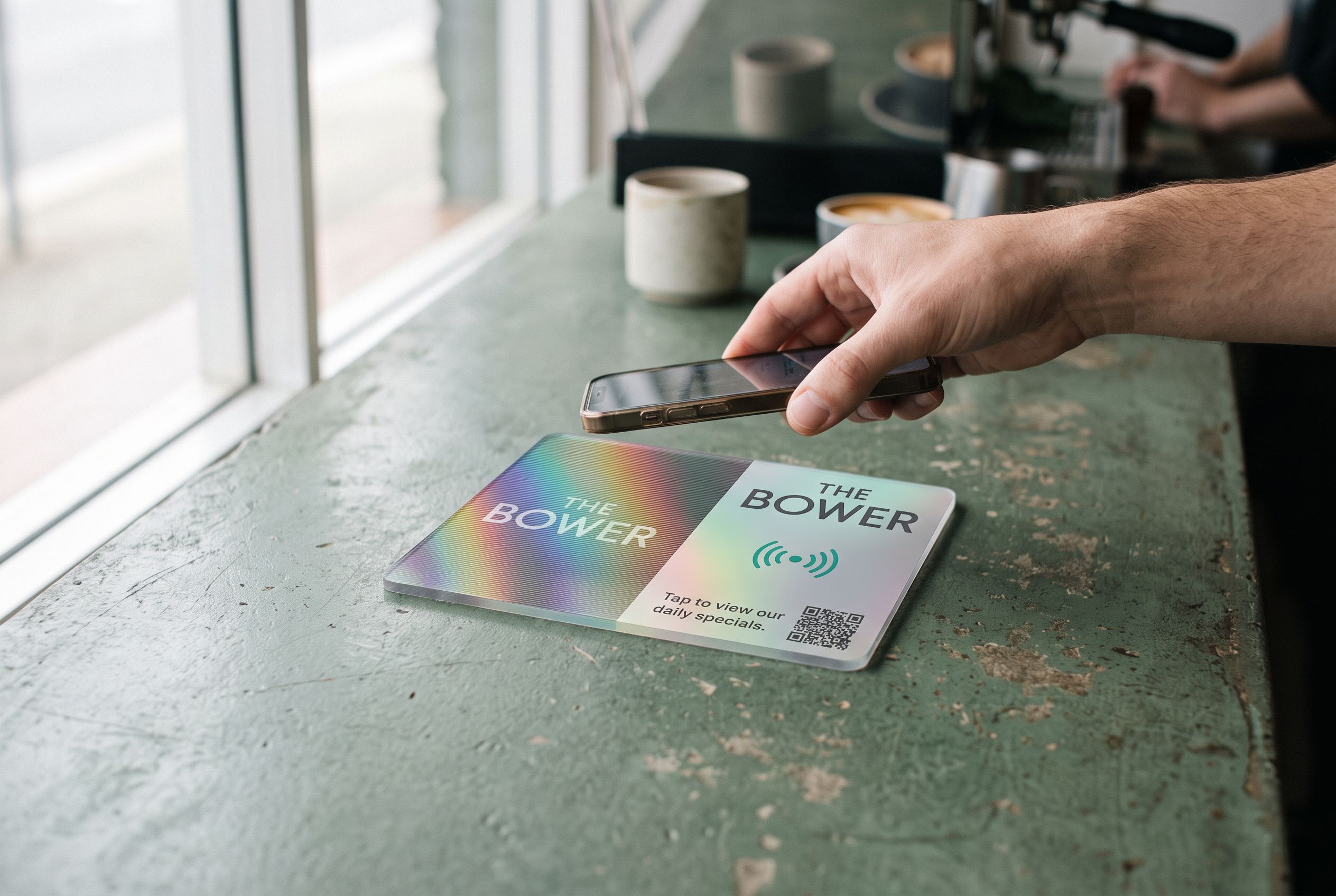
Order-at-table works when the customer can start ordering the moment they sit down and the kitchen knows exactly which table it came from. Both depend on the object on the table. A laminated QR card gets moved, stained and swapped between tables. A tile that is fixed in place, numbered, and pointed at that table’s link removes the two most common failures: the wrong table and the missing card. Here is how to set up a room.
Before you order tiles
Pick your ordering system. me&u, Mr Yum, Square, Lightspeed, Bopple, HungryHungry and most others give each table its own link. Check yours does.
Number the tables. Decide the numbering once and write it on a floor plan. Numbers, not names: “Table 12” is easier for a customer to confirm than “the one by the window”. Leave gaps if you might add tables later, so a new table by the door can be 13 without renumbering the room.
Count the tiles. One per table, plus one or two spares. Bar seating usually gets one tile per two or three stools, numbered as positions. Outdoor tables get their own.
Getting the links
In your ordering system’s admin, find the table or QR section. Each table has a link that includes its number or a code for it. Export them if you can, or copy them into a spreadsheet with two columns: table number and link. You will paste these into the tiles, and the spreadsheet is your record if a table is ever renumbered.
Test one link on your phone. It should open the menu with the table number already showing.
Designing the tiles
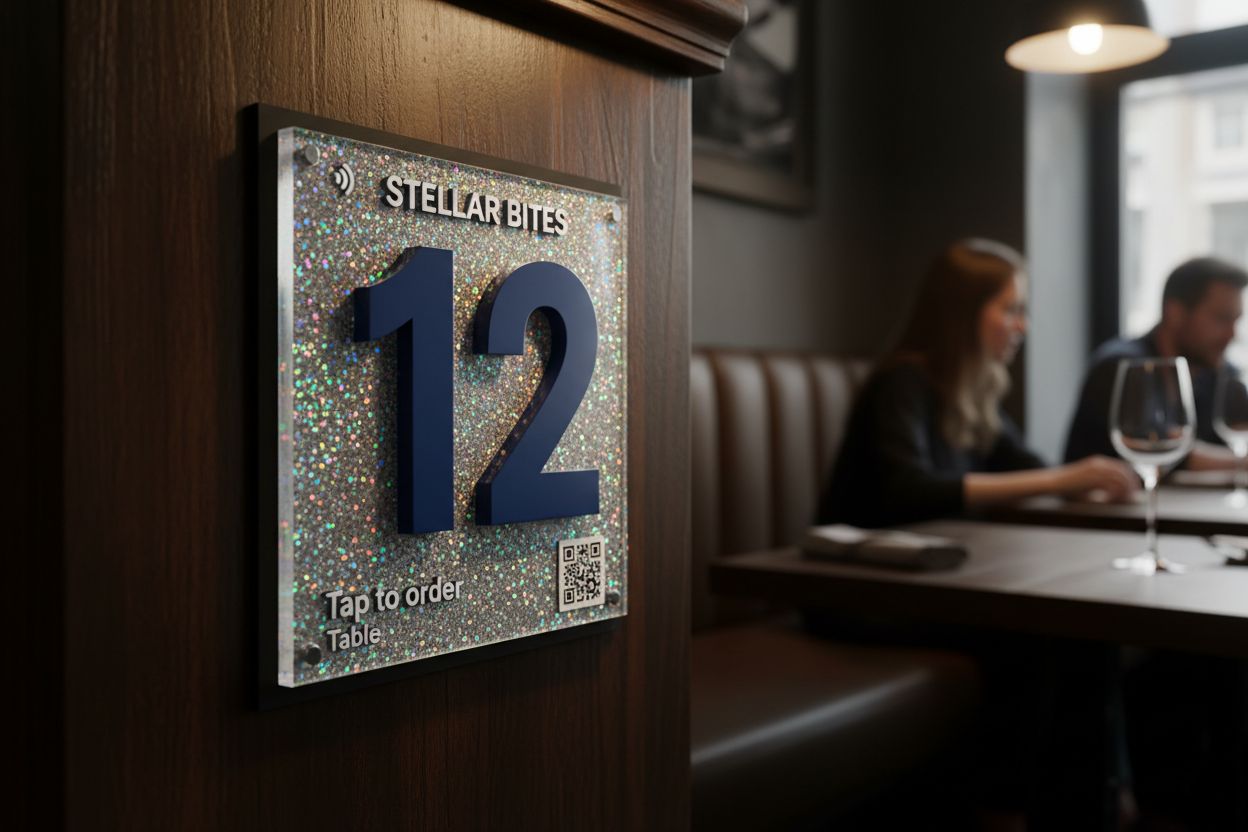
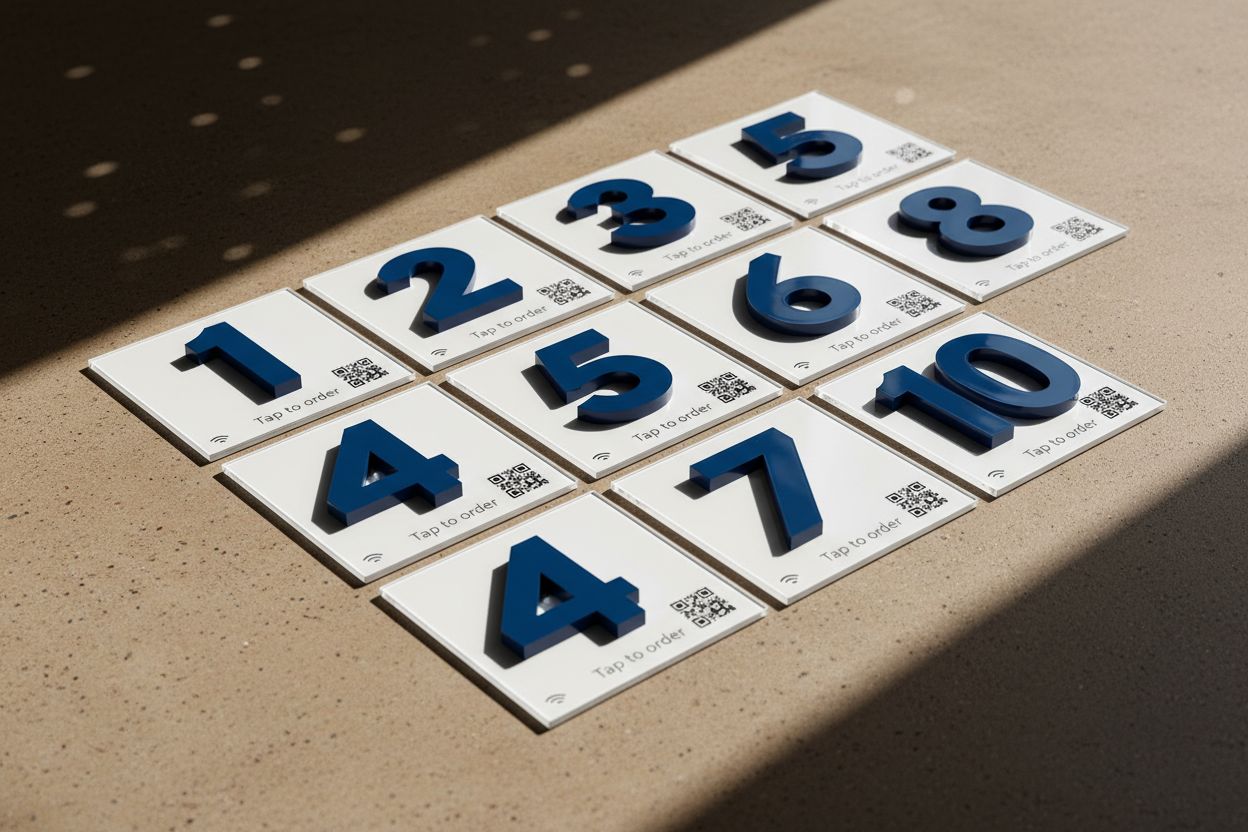
Open the table ordering tile. Every tile in the run carries the same design with a different number, so design once: your logo, the words “Tap to order”, and the table number large enough to read across the table. A QR code in the corner catches anyone whose phone cannot tap.
Pick a size. 106mm suits a small café table; 147mm suits a restaurant table or a bar. Pick a material that matches the room and survives the wiping. Opaque acrylic in your brand colour is the usual choice for a room of twenty or more tiles because every tile matches; see acrylic or wood for the trade-offs.
For ten or more, order through bulk orders. Tell us the number range and we set every tile up, encode it, test it and label it with its table number before it ships.
Fixing them down
A loose tile migrates. Fix it. Three ways, from least to most permanent:
- Adhesive pad. Supplied with the tile. Clean the table with alcohol first. Holds well on laminate, sealed timber and stone. Peels off later with a warm cloth.
- Screws through the backing. Two screws into a timber table. Permanent and tamper-proof, and the tile can be unscrewed for a refit.
- A stand. For tables that get moved or stacked. The stand holds the tile at an angle so the number reads from a standing position.
Put the tile where a seated customer’s hand naturally rests: near the edge, not the centre. On a long table, one at each end.
The first week
Ask staff to point to the tile when they greet a table. “Tap that with your phone to order” is enough. Most customers already pay with their phone and the gesture is familiar. After a week, nobody needs to say it.
Watch the tap counts from your Shortfield account. A table with no taps has a tile that is hidden, blocked or at the wrong spot.
When things change
The menu changes. Nothing to do. The tile points at your ordering system; the menu lives there.
You change ordering systems. Export the new per-table links, sign in to your Shortfield account, and point each tile at its new link. The tiles stay on the tables.
You renumber the room. Re-point each tile to the link for its new number, then update the printed number by ordering a replacement face. Or swap tiles between tables, since the number is printed on the tile.
A tile breaks. Order a replacement for that number. Bulk runs are recorded, so it matches.
Frequently asked
Does the tile need power or Wi-Fi? No. The chip is powered by the phone that taps it. It never needs charging or connecting.
Will it work under a glass table top? Only if the glass is under about 8mm. Thicker glass pushes the phone too far from the chip. Put the tile on top.
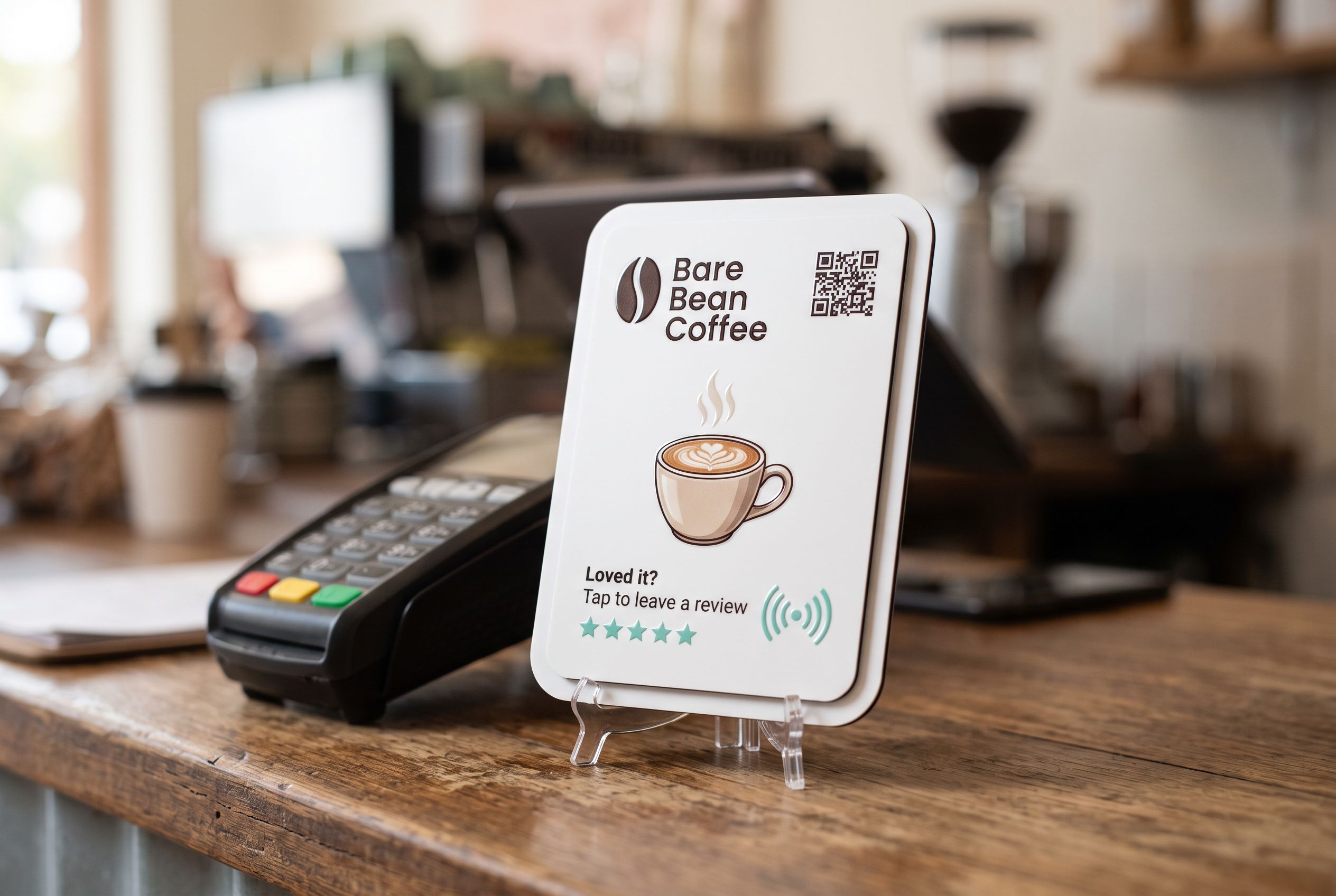
Can one tile do ordering and reviews? Point it at ordering. Put a separate review tile by the register where people pay.