How to create a wifi QR code (free) that phones join in one scan
The exact format a Wi-Fi QR code uses, how iPhone and Android cameras join from it, free ways to make one, and the catch when your password changes.
By Shortfield 4 min read
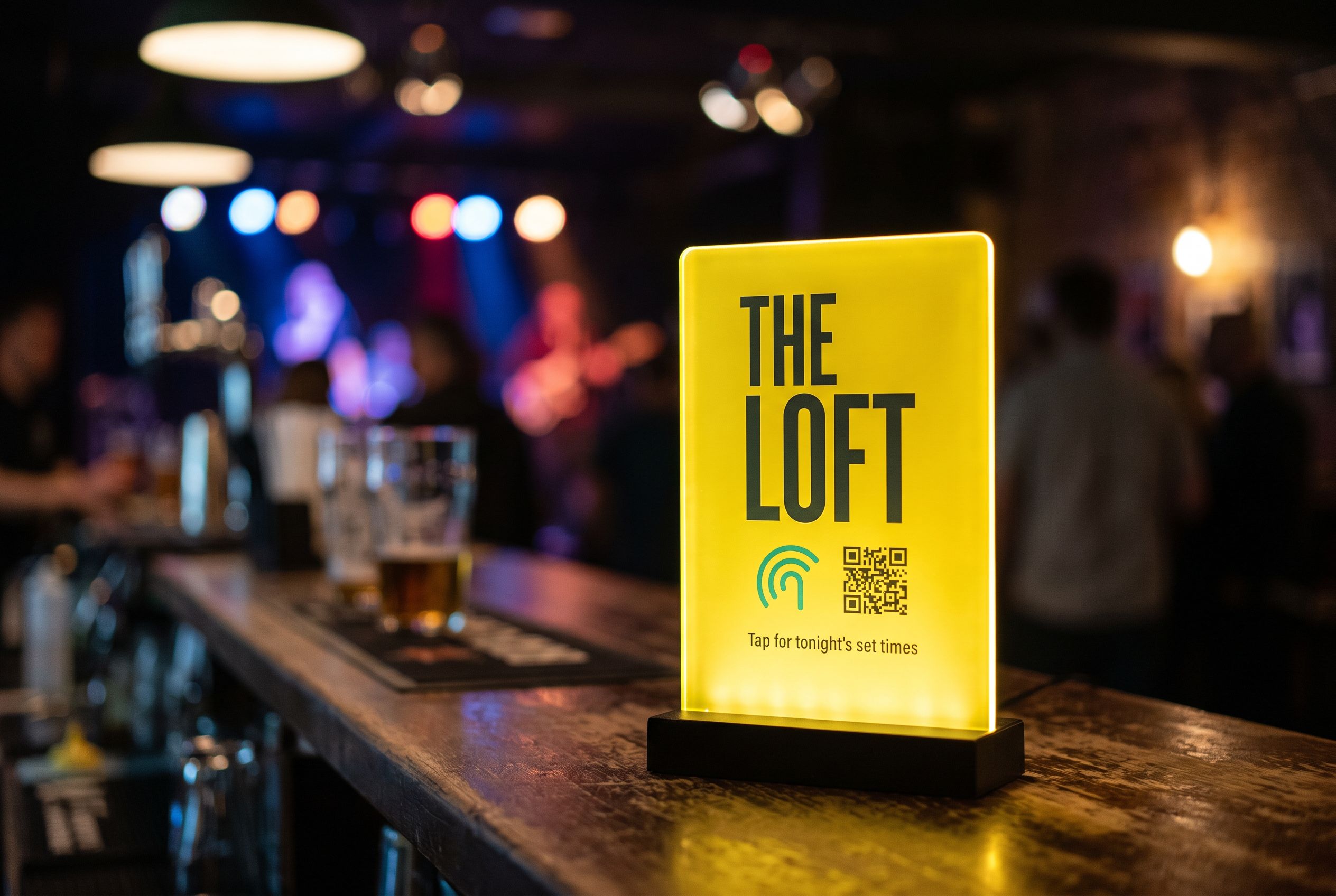
To create a Wi-Fi QR code, you encode a short line of text in this format: WIFI:T:WPA;S:YourNetworkName;P:YourPassword;; and turn it into a QR code with any free generator, most of which have a “Wi-Fi” option that builds the text for you. When someone points an iPhone or Android camera at the code, the phone recognises it as a network and offers “Join network” with one tap. No typing, no reading the password off the router. The catch is that the password is printed into the code itself, so if you change the password, every printed code stops working.
Here is how to build one properly, and what to do about that catch.
What is the Wi-Fi QR code format?
The format is a de facto standard that iPhone and Android cameras both understand:
WIFI:T:WPA;S:CafeGuest;P:flatwhite2026;;- T is the security type. Use
WPAfor WPA, WPA2 and usually WPA3 networks, which is almost all home and business networks. UseWEPonly for very old routers, ornopassfor an open network. - S is the network name (SSID), exactly as it appears in the Wi-Fi list, including capitals and spaces.
- P is the password, exactly.
- H:true; can be added if the network is hidden.
- The line ends with two semicolons.
If your network name or password contains a semicolon, comma, colon, backslash or double quote, put a backslash in front of it. Guest;Net becomes Guest\;Net. Most generators handle this for you; if you type the text yourself, check it.
How do I make one for free?
Most free online QR generators have a Wi-Fi option: choose it, enter the network name, password and security type, and download the image. Look for two things:
- A static code. Some “free” generators make a dynamic code that routes through their server and stops working when a trial ends. For Wi-Fi you want the network details encoded directly. See dynamic vs static QR codes.
- A high-resolution download (PNG at a decent size, or SVG) so it prints sharp.
On Android, many phones also generate a Wi-Fi QR code for you: open Settings, tap the network you’re connected to, and look for Share or a QR icon. On recent iPhones you can view and copy the password of a saved network in Settings, but sharing by QR code is less built-in. Either way, you can type the details into a generator yourself.
How does an iPhone or Android phone join from it?
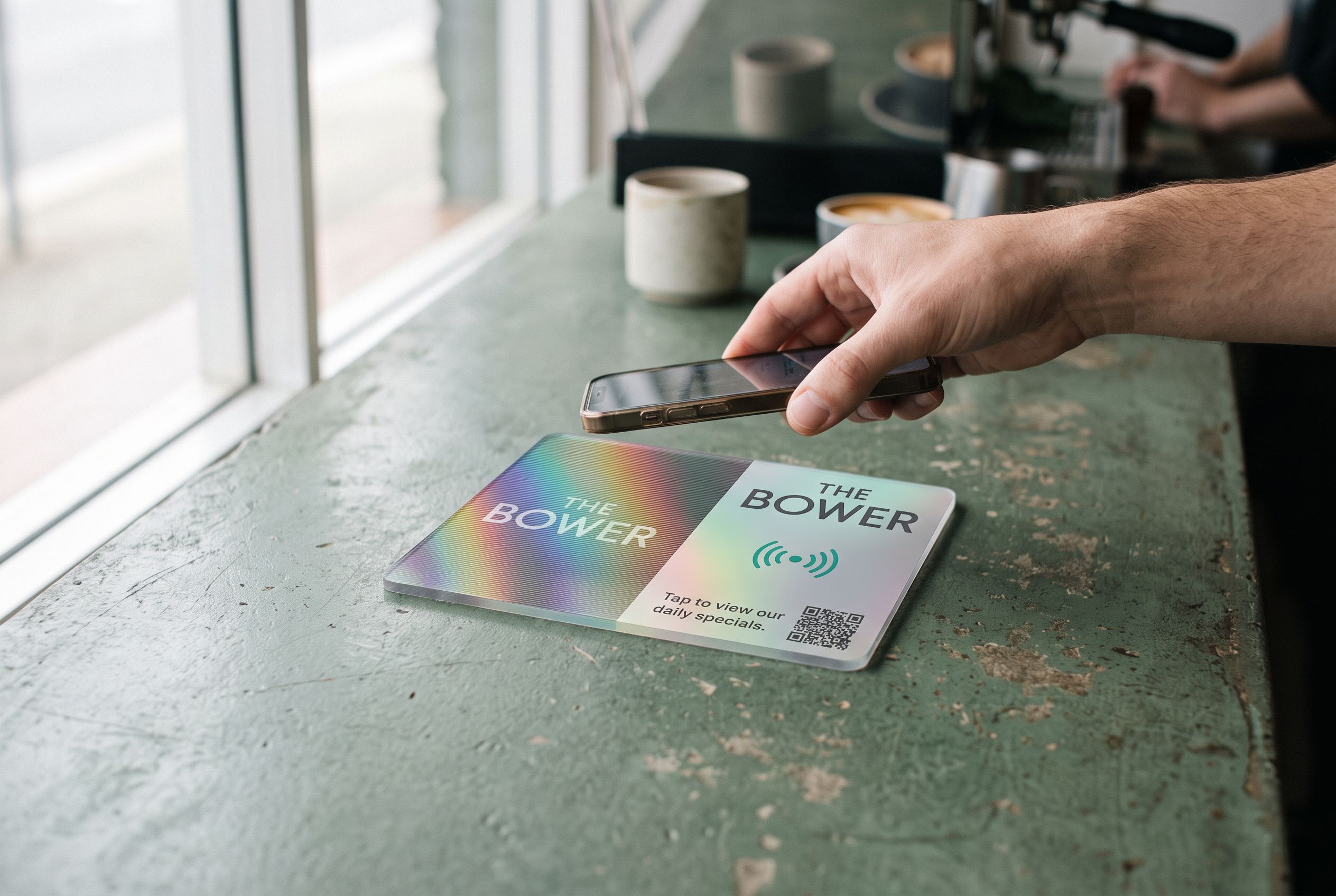
Open the camera and point it at the code. On iPhone, a banner appears saying “Join network [name]”; tap it, then Join. On most Android phones, the camera or Google Lens shows a similar prompt and connects. Nothing to install.
Older phones and some camera apps don’t read Wi-Fi codes. Print the network name and password in small text under the code as a fallback.
Where do Wi-Fi QR codes go wrong?
- The password changes. This is the big one. Businesses change guest passwords after a staff member leaves, after someone shares it, or because the router was replaced. Every printed code with the old password silently stops working, and guests blame the Wi-Fi.
- The code is too small. A code on a card at the far end of the table won’t scan. For most uses, print it at least 3–4cm square.
- Glossy lamination in bright light. Reflections stop cameras reading. Matte works better.
- Guest isolation. Put guests on a separate guest network, not your main one with the EFTPOS terminal and office computer.
How do I avoid reprinting when the password changes?
Point the QR code at a page instead of encoding the password into it. The page shows the network name and password with a copy button, and when the password changes you update the page. The printed code never changes.
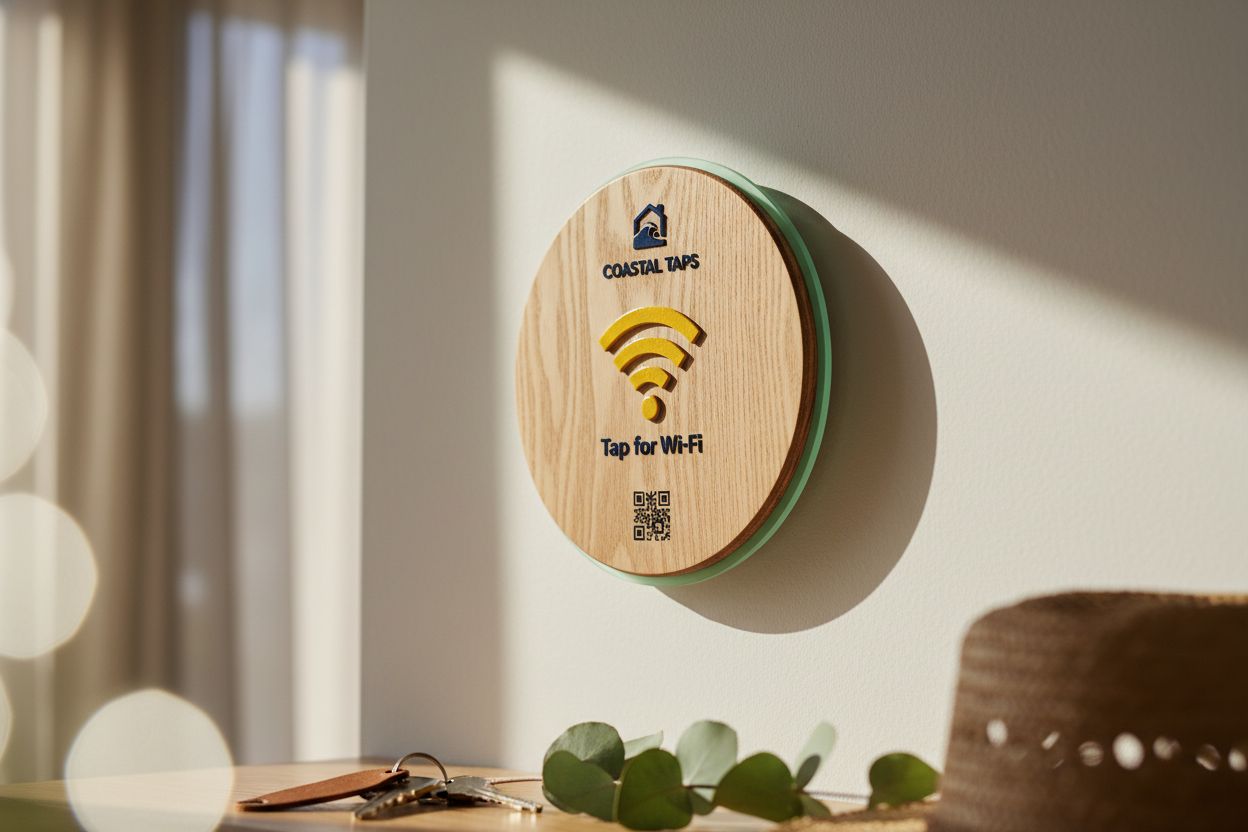
That is how a Shortfield Wi-Fi tile works. The QR code on the face and the NFC chip inside both point at a Shortfield address. On the Starter plan ($9/month) that address can be a hosted Wi-Fi page with your branding; change the password there and every tile shows the new one. Guests with an iPhone XR or newer, or an NFC-equipped Android phone, just tap; everyone else scans. The trade-off is one extra step for the guest: they copy the password and join, rather than joining straight from the camera.
For a straight comparison of those two approaches and the hardware, see the Wi-Fi QR code sign and our guide to sharing Wi-Fi with guests.
Where should the Wi-Fi code go?
Where people ask for it. In a café, on the counter or on each table. In a short-stay rental, by the front door and on the bedside table; see Airbnb Wi-Fi signs. In a salon or clinic, at reception and in the waiting area. In a pub, on the bar.
Frequently asked
Is it safe to put my Wi-Fi password in a QR code? Anyone who scans it can read the password, the same as a password on a card. Use a separate guest network so guests never touch your business devices.
Do Wi-Fi QR codes expire? A static code never expires. It simply stops working when the network name or password changes.
Why does my phone say “unable to join”? Usually a typo in the network name or password, the wrong security type, or an unescaped special character. Check capitals and spaces.
Can one QR code cover two networks? No. One code holds one network. A hosted page can list both, with a copy button for each.